
How We Add Brand/Group to Add Product
Click on Brands
The Brand window displays the brand associated with the products. This section shows the brand name of the product.

Click on Add Brand/Groups (title).
When you click on the “Add New Brand Group” option, it opens a new pop-up window in front of your screen.
- First, enter the group title name in the given space. E.g., the group name is mobile.
- Enter a general description in it, which means mention a description related to the brand category. E.g., from where the product belongs, the user can write in it. (The description box is optional here.
- Below, there are subsections given to add the brand/group title.
- Write the above group title name in the title box and then mention any description related to product brand/group information.
- You can add in (+) or remove (-) more rows to add more groups.
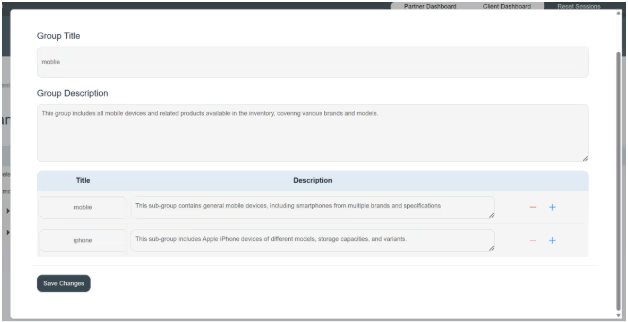
- Click on the save button. The new brand/group title is shown in the existing brand list.
When you click on the save button, a new brand category will appear on the front page of brands.
Here you can see summarized information in a table. This page displays groups, brands inside each group, products linked to those brands, descriptions, and the total number of products (as shown in the picture).
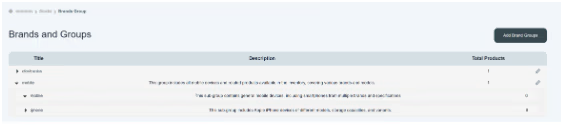
To review the table, these groups are given in expandable sections to view the brands and their products.
- Each group name is considered a top category that contains multiple products.
- The general description gives you more information related to the group section.
- The total number of products is also displayed in it.
- Click on each group title, and you can see more subsections given in it.
How we edit the brand information
- There is an option given on the right side of the group name.
- Click on it, and again, a pop-up window will open and allow the user to update information. E.g., if you want to add more rows to add more groups and descriptions in the future, you can add them in.
- Update your changes and click on the save changes button.
- Once you save changes, the new changes will be displayed in the front table.
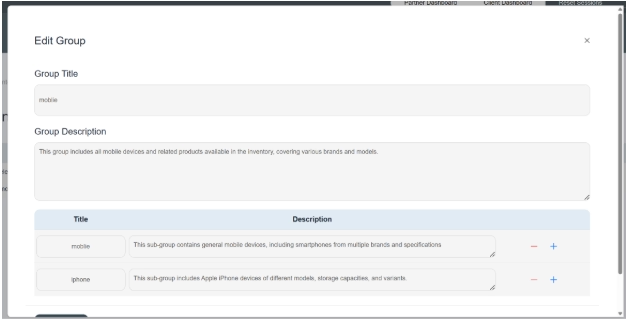
In this way, a user can add brands and groups in Capi Plan books.
