
How do we change the status/delete the product?
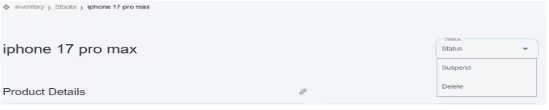
At the top right side, you can see that there is a status bar given, located at the top. You can click on it, and it gives you two options, i.e., Suspended and Delete.
- Suspend—Suspending a stock account means you can’t update product information, but the data is still saved.
- Delete button—permanently removes an account, record, or item from the system. E.g., permanently removes product information, records, or items from the system.
By clicking on any option, product information would be suspended or removed permanently.
- Basic Information
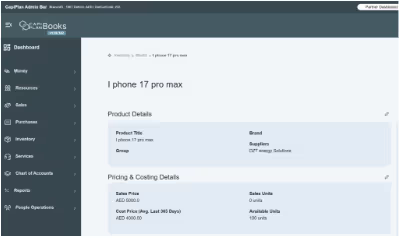
First, the product details are displayed, including the product title, product group, brand name, and supplier name. When the user books a bill against this product, the supplier’s name is automatically populated in the billing section as well.
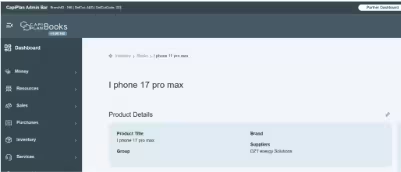
There is an edit option  given on the top left side of the product detail. When you click on it, a new pop-up window will open.
It gives you access to update more information. Below will be displayed in front of your screen.
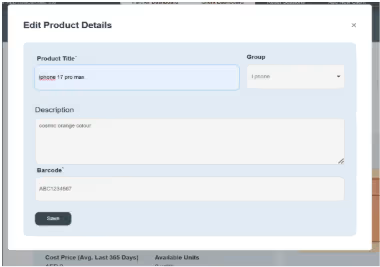
Once you enter information, click on the Save button. New changes would be updated.
2. Pricing & Costing Details
In this block, sales and cost information is provided. First, in this, you can see the sale price, cost price (avg. last 365 days), sales units, and available units.
There is an edit  option given on the top right side. You can click on it, and a new form will open in front of you.
It allows you to enter sales prices, selling prices, VAT prices, and descriptions related to the product.
You can enter more description in it and update the pricing block.
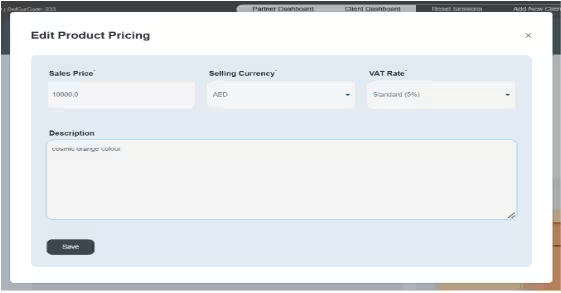
Once you enter information, you click on the save button. New information would be updated automatically.
03. Sale vs Purchase Graph
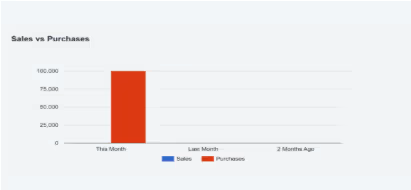
You can view a graphical representation of sales and purchases, displaying data for the selected product for the current month and the current year. Sales are represented in blue, while purchases are represented in red.
04. Invoice and Bills
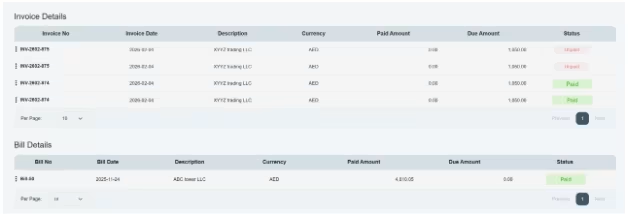
In the bottom section of the page, all invoices and bills booked against the selected product will be displayed. Users can also directly access the related invoices and bills from this section.
05. Batch Tracking and Discard Process
Remember: The batch number is entered during bill booking and is recorded against the corresponding product.
There are two options given along with the graphical representation, written in blue font. i.e., View Active Batched | Discard Expired Items.
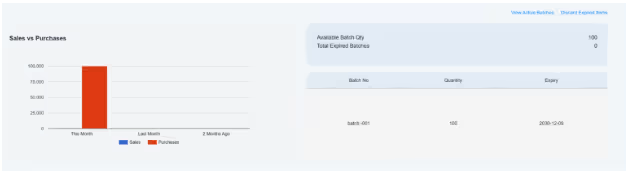
At the bottom of these options, you can see a summary is given of the available batch quantity and total expired batches.
Click on View Active Batches
When you click on View Active Batches, a new window will appear on your screen, where you can check the active batches available in our stock.
There is a table having multiples columns given here, such as
- Batch number: Unique code to identify a product batch
- Batch ID: Internal system identifier for the batch
- Production date: Date the batch was manufactured
- Expiry date: Date after which the product should not be used
- Total quantity: Total units produced in the batch
- Sold quantity: Units already sold
- Already discarded quantity: Units removed due to damage or expiry
- Available quantity: Units currently in stock and saleable.
- Damaged items (if any are available)—the user can enter the damaged item quantity (if any product is damaged).
- Enter the damaged product’s quantity and click on the discard damaged item option.
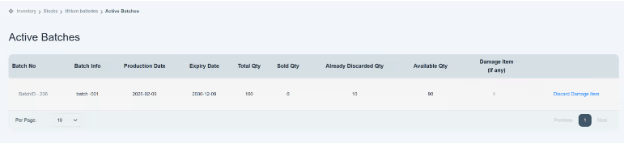
- Once you click on it, the item quantity will be discarded successfully and will be recorded in the system as an already discarded item.
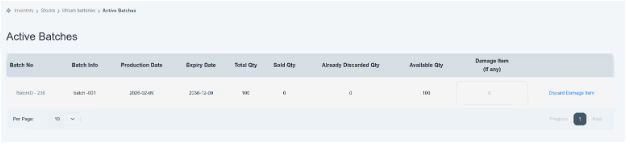
How to Discard Items from Inventory
To discard any damaged item from its relevant batch, the user must enter the quantity in the “Damaged Item (if any)” field.
After entering the quantity (for example, 10), click the Discard Damaged Item button provided alongside the field.
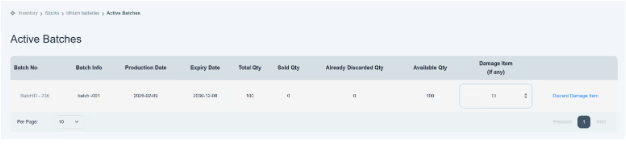
Once clicked, the system will automatically remove the specified damaged quantity from the batch and display the remaining items available in the batch.
6. How to check disposal inventory
Discard Expired items
On the other hand, the Discard Expired Items option is available. Click on it, and you can see a new page appear in front of your screen. This page shows you summarized details of inventory disposal.
Remember—you can view the sales and purchase information of a product only after its invoices and bills have been properly recorded.
- Expired items
Expired items are those that no longer have a useful life, are not safe to use, cannot be sold, or have no economic value. There are different columns available related to inventory disposal. You can check the expired items that are available in the form of a table, such as
- Batch no.—A unique code to identify a product batch
- Batch information—Provides batch-specific details for the selected product.
- Expiry date—date after which the product should not be used
- Expired quantity—the quantity of products that have passed their expiration date.
- Discard items that are expired.
Through this, you can check if the item has expired.
- Discard Details
Discard inventory details are available in the second table. The user can analyze the following information:
- Batch ID: A unique code to identify a product batch.
- Batch info—Provides batch-specific details for the selected product.
- Nature of Product—Describes the type or category of the product, like damaged or expired.
- Discard Quantity—The number of units being discarded.
- Unit (Price of Purchase) – The cost per unit at the time of purchase.
- Discard Value – The total value of the discarded quantity.
Systems show you all the already discarded items’ information from here.
- Debit notes
If the company wants to return any purchase to the supplier, we create a debit note. To create this, the user can add a debit note through its specific bill or directly through the supplier account.
The inventory disposal table records items returned to suppliers or removed from inventory when they are no longer useful to the company. The user can see summarized information with the following columns, consisting of
- Reference Number—A unique number to track the transaction or record.
- Batch Info—Details related to the specific product batch.
- Quantity—The number of units that one wants to return.
- Unit Price—The price per unit of the product.
- Total Price—The total amount calculated based on quantity and unit price.
The given picture below is for better user understanding.
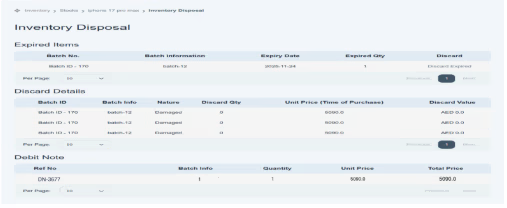
In this way, users can analyze the inventory disposal and maintain data.
