
How we Update the Price list
Click On Price List.
When you click on the price list. A new window opens in front of you.
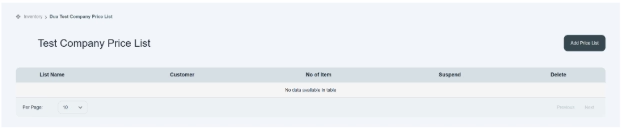
This page shows you that there is a table located to add product pricing relevant to each customer. These columns indicate the following information, such as
- On the left side of the table, the user will see the list name and the customer name columns available.
- In the middle of the table, it shows the total number of items from each customer.
- On the right side of the table, a suspended button and a delete icon are provided.
If you click on the suspended button, the price list of that customer becomes inactive (disabled).
- If you click on the delete button, the price list of that customer will be deleted permanently.
- If you have many price lists, use the section to move between pages. It allows you to select how many price lists you want to display on one page (e.g., 10, 20, 50).
- There is a button located in the top corner of the page. i.e., add a price list.
Click On “Add Price List.”
When you click on the Add price button, a new page opens in front of you.
This page shows you a list of all products that have been added before in the system.
It allows users to create new titles for given products, helps us to identify the customer, and can analyze the actual price and the offered price of products. The user can align products in the price list according to the customer and assign a dedicated title, allowing them to easily review the inventory price list for a specific customer.
- On top of the table, there is a space given to enter the new title name to add to the title list, e.g., mobile phone.
- Click and choose the customer’s company name from the drop-down section. E.g., ABC Tower LLC.
- In the table, if you already see a list of all products, if not, then click and select the product title from the drop-down section. E.g., mobile, iPhone
- If the required product name is not available, then click on “add” in the (+) option; a new row appears, and then add information.
- If the required products are available in the given list, then select those products and remove the remaining products from the list.
- Click on the add-in (+) or remove (-) options located on the right side of the list.
- The base price column would not be editable, but the user can update the offer price.
- Click and select the currency if it is not provided.
- Once you enter all the information, click on the save button, and your information will be saved.
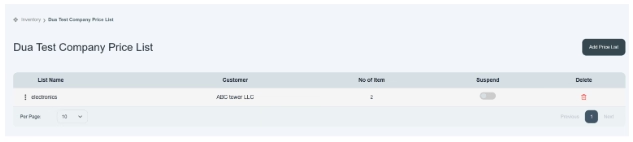
Click on the save button, and the user will see a new title assigned to a specific customer’s product.
Analysis of Price List
When you click on the title name, it shows you detailed information on the pricing of the customer’s company products.
It shows you the total number of products with their base price and offer price. Also, show you the percentage of difference between the initial price and the offer price
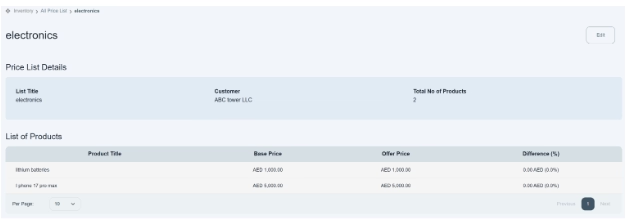
There is an Edit option available on the top right side of the page

Click on the Edit option
- Click on the edit option, and it gives you access to edit the given option and update the changes.
- Even the user can add or remove rows by clicking on the (-) or (+) option.
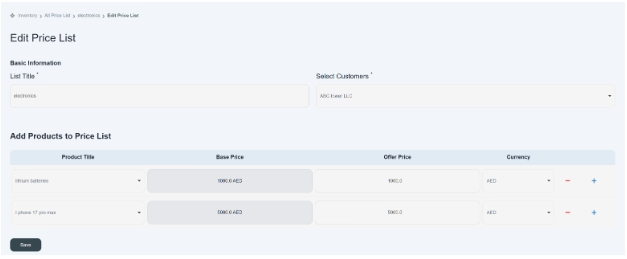
- Once you enter all the information, click on the save button, and the new information will be displayed on the front screen.
By following these steps, users can efficiently update, review, and manage product price lists on a customer-wise basis. This helps ensure accurate pricing, improves transparency for each customer, and supports effective long-term inventory and pricing management.
