
How to "Add New Work In Progress"
Remember: to add new work-in-process, raw materials must already be added to stock. Against these, the supplier, bill, and batch number must also be added.
There is an “Add New WIP” button given on the top right side of the window. Click on it.
When you click on it, it will show you a new window. This window allows you to record work-in-progress (WIP) cost information during the production of goods. It includes three types of costs.
- Material cost
- Labor cost
- Factory overhead cost (FOH)
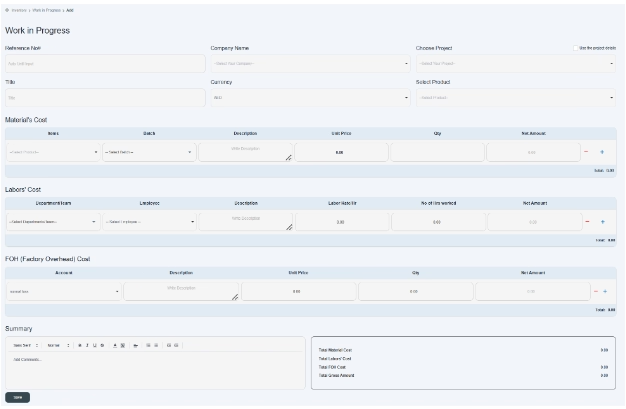
First, there is basic information required for WIP. Fill all the details like this;
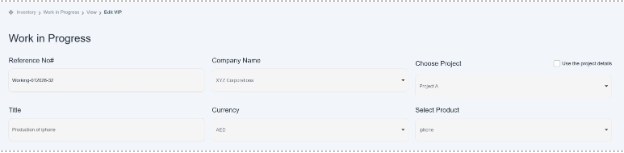
- Enter a valid reference number to track the record. e.g., Working-012
- Enter the company name of the customer’s company, e.g., XYZ Corporation
If you don’t find your client’s company, then write your client’s name in the given space. When you write your company name in it, it will show you the Add New option. Click on it and create your client company name.
- Click on the project and choose an existing project given in the drop-down option. E.g., Project A.
- Use Project Details—Check this box to auto-fill details from the selected project.
- Title—Enter the title name of the production through which you can identify the work-in-progress item. Production of iPhone.
- Select the currency in which the client made the payment. (e.g., AED).
- Select the product—click on the drop-down menu and then select the product name. e.g. iPhone
For this purpose, if you don’t find your product name in your drop-down menu, then write your product name in the given space. When you write your product name in it, it will show you Add New Item there. Click on it and create your product. Now, come back to the page and refresh it for the required result.
- Material Cost
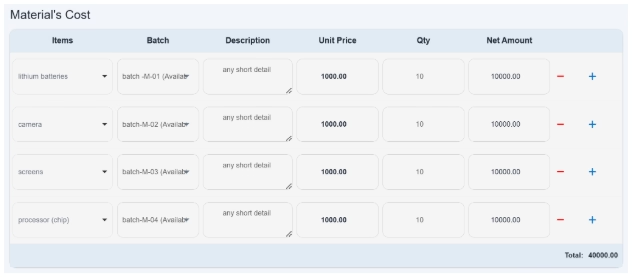
There is a material cost table given below in which you can add multiple raw materials, which are used in the manufacturing of products.
Fields are given below;
- Items—In the item field, the name of the material used for manufacture, e.g., the raw material used in the manufacturing of mobile phones, is lithium batteries, cameras, screens, etc.
- Batch—here you have to click and select the batch number of the product to which it belongs.
- To create the batch number against you, you must book a bill for it.
- Description—You can add any short description related to the item.
- Unit price—once you enter the batch number in the batch field, it will automatically show you the item unit price in it. Once it enters, it can’t be changed unless you go to edit the bill.
- Qty—enter the quantity consumed.
- Net Amount—Once you enter the remaining field, it will automatically calculate the net amount.
- Add—The user can add multiple rows to add multiple items, so click on add (+).
- Delete—there is a delete option (-) given to remove any item row.
- End total—it gives you the total amount on the bottom right side of the material table.
- Labor’s Cost
There is a labor cost table given with different fields. Such as given below;
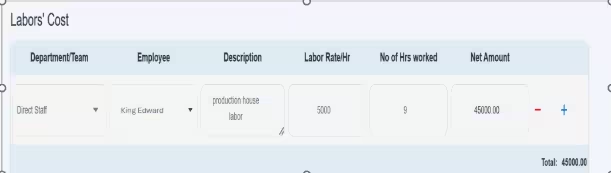
- Department team—click on it and then select the employee department, e.g., direct staff, admin staff, or marketing, etc.
- Employee—click and select the employee from the drop-down menu. Here, only those relevant employees who are in the same relevant department will show.
- Description—Here you can add a short description related to labor cost.
- Labor Rate/Hr—Enter the cost of the labor hourly rate, e.g., 5000 per hour.
- No. of Hrs Worked—Enter the total number of hours labor actually worked.
- Net amount—once you enter the remaining field, it will automatically calculate the net amount.
- Add – The user can add multiple rows to add multiple labor information. So click on the add (+) option.
- Delete—there is a delete option (-) given to remove any row.
- End total—it gives you the total amount on the bottom right side of the labor table.
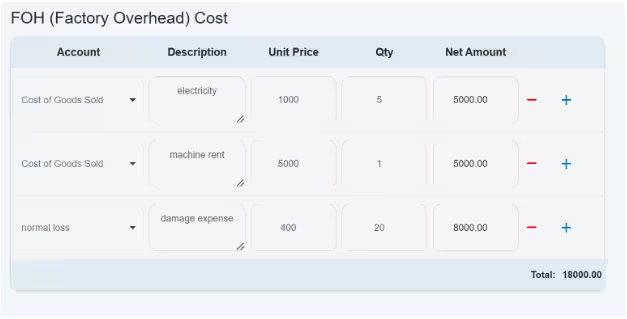
- FOH (Factory Overhead Cost)
In FOH, all the costs that are indirectly needed or involved in making products.
There is a third table given here, which is related to FOH. Here you can enter the information on all indirect costs that were used in the production of goods.
- Account—In this field, all the expense accounts are given. Click and select the required account code from the drop-down menu.
- If the required account head is not available, go to the Chart of Accounts and create it. Then return to this page and refresh—the newly created account head will appear.
- Description- There is a description box given to enter a short detail related to the account head.
- Unit price—enter the cost per unit of the indirect expense.
- Quantity means if there are any number of products that are used indirectly to make a product.
- Net Amount—Once you enter the unit price and quantity, it will automatically calculate the net amount of the account.
- The Delete (-) button is given to remove any row.
- Add—the add (+) option is given to add multiple items/accounts in the table.
- End total—at the end of the table, there is a total amount given on the bottom right side of the table, which calculates all the costs that are used as FOH.
Summary Table
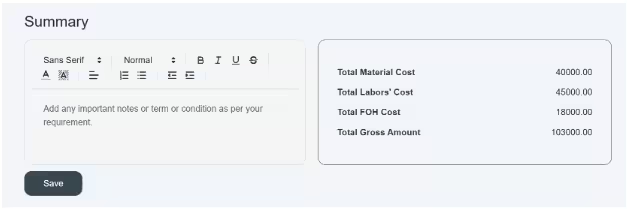
Now at the end of the window, it shows you a summary table.
- On the left side of the table, the user can add any important notes or terms and conditions.
- On the right side of the summary table, it shows you the total financial summary of all costs that are involved in work in progress.
Save Button
- After entering all the information, click on the save button to store all the details in the system.
Once you click on the save button, new information will display on the table of work in progress, given on the front window.

Excellent!
Now you can add a new WIP of any product.
Additional information
Remember that every time you create a new WIP, it will show you production is in “In-Progress” status until you convert it into finished goods.
At this stage, the user still has access to edit any information or delete the entire information permanently before it is converted to finished goods.
