
How To Add New Products Or New Service In Bill/PO
If you don’t find your product name or service name in the “Item section” in the “Add Product block.”
Then write your product/service name in the given space, and then it shows you the option to add a new item / add a new service in blue font. Click on it as per your requirement.

- Add New Product
This page gives users access to add products into the inventory system by filling out the necessary information related to product specifications and purchases.
Basic information
- First block is based on basic information.
- Enter product name or title of product. E.g., iPhone 17, etc.
- Enter the group category, like electronics, mobile phones, or grocery.
Returnable (checkbox)
Tick the checkbox if the product is returnable.
Excise Product (Check box)
Tick the checkbox if the product is for exercise duty.
Description
- Enter detailed information or specifications related to the product.
- Enter the picture of the product.
Product specification.
- Enter the product size. Like its length, width, height
- Select the unit of measurement. e.g., cm, inches.
Measurements:
Enter the volume or quantity per unit (e.g., 500 ml) and select the measurement unit (e.g., ml, L, kg).
Barcode:
Enter the barcode of the product if available.
Purchase Information
- Enter the selling price of the product.
- Select the currency in which the purchase price is defined (e.g., AED).
- Select the applicable VAT tax rate from the dropdown menu.
Discount Rate—Enter any applicable discount percentage (e.g., 10.0 for 10%).
- Save: Once all the information is successfully entered, then click on the save button and save it.
Now go back to the supplier/customer page and then enter your item name; this time you get your item name in the given list.

- SERVICE
First, you have to create a department. If you don’t know how to add department, then go to the section and check. “How to Add Department.”
There is a button located on the top right side of page. i.e. Add Department.

Click On “Add Department” Button
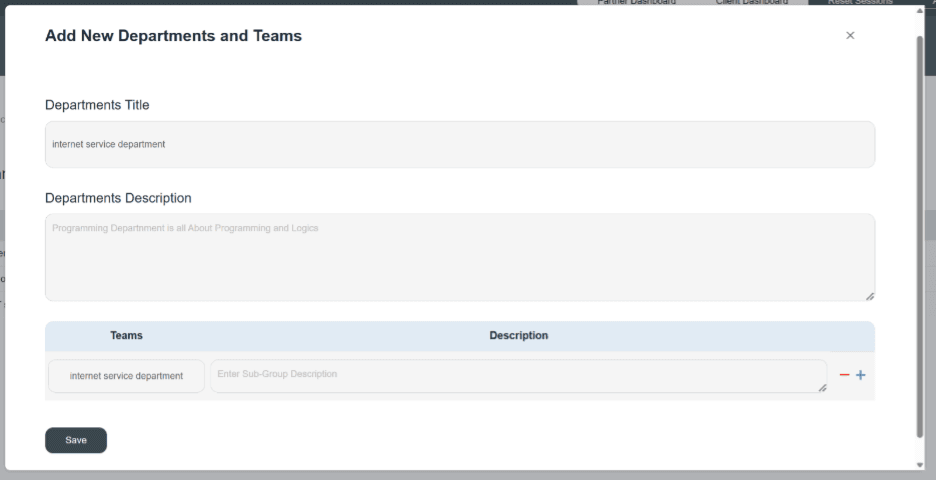
When you click on the Add New Department option, it opens up a pop-up window in front of your screen.
- First enter the department title, name, or group name to which the service belongs in the given space. E.g., the department name is the Internet service department.
- Enter a general description in it.
E.g., from where the product belongs, the user can write in it. (The description box is optional here).
- Below there is a table given; you can add a subsection in it. Write the subdepartment name in it. E.g., Internet service department.
- Mention any description related to product department information.
- You can remove (-) or add (+) more subdepartments under a specific head.
- Click on the Save Button to save the information successfully.
Once you save the information, the new department title is shown in the existing list.

Then come back to the service module and click on it. There is a button located on the top, i.e., the Add Service button.

Click on this button; it will show you a new pop-up window.
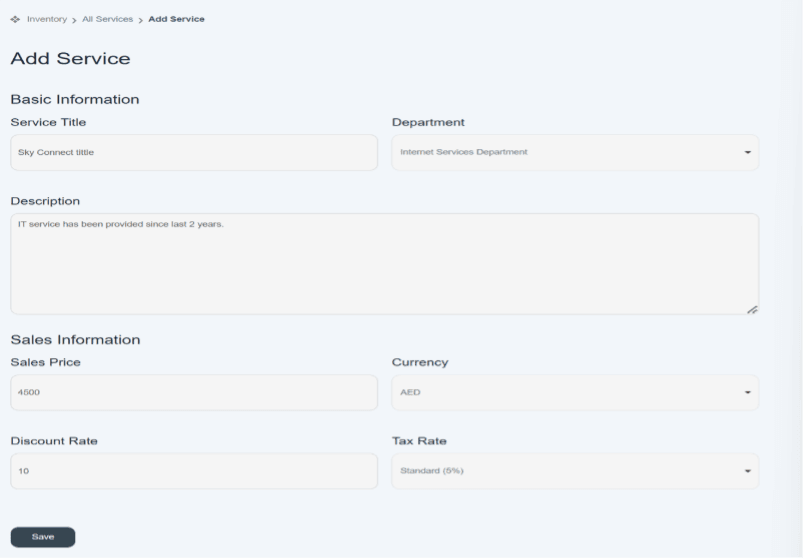
This page allows a user to create service information such as basic information, sale information, and VAT information.
- Basic Information
- First enter the service title, e.g., Sky Connect.
- Click and select the Department group from the drop-down section.
- Enter service description in the given space. E.g., IT service has been provided for the last 3 years.
- Sale information
- Enter sale price of product. E.g., AED 4500
- Enter currency in which buyer made payment. E.g., AED
- Click and select the VAT tax rate applied on the service. E.g., Standard (5%)
- Enter discount rate if it is Provided by the supplier. E.g., 10%
- After entering all information in it. Click on the Save button.
- Once you enter all information, click on the save button, and your service information will be saved in the system and displayed on the existing list of services.

