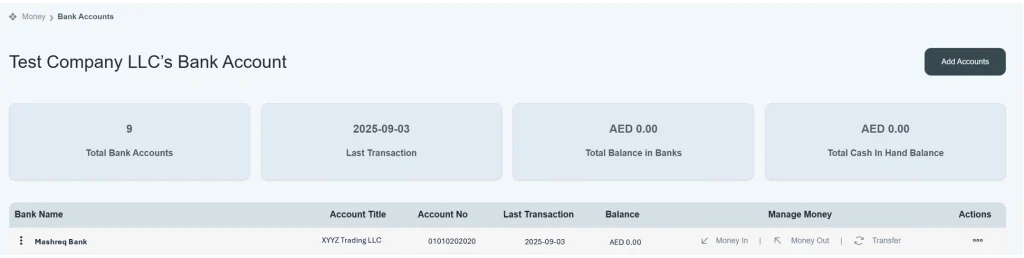
How we create bank account
Go to the Money Module and do the following:
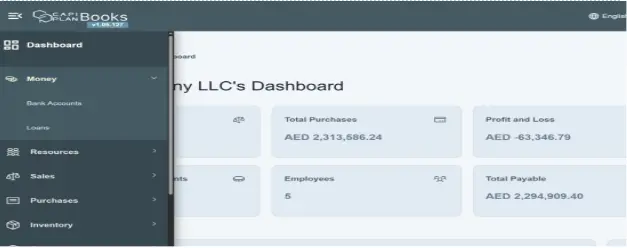
- Go to Navigation bar on the top left corner to “create the bank account”.
- Click the navigation bar; it will show you several tabs below.
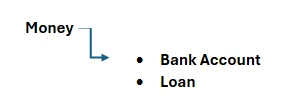
- Click on the first one, i.e., Money.
- There are two options given below.
- You will land on the Bank Accounts dashboard showing existing accounts and balances.
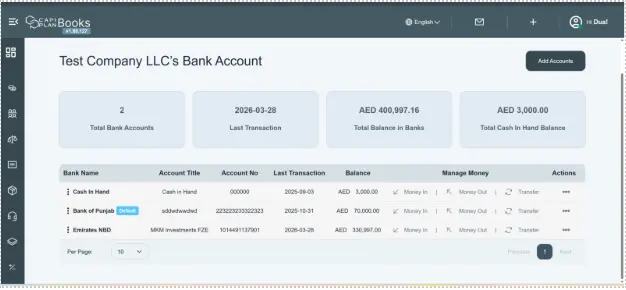
- Click “Add Accounts.”
- At the top of the page, click the “Add Accounts” button.
- A new window will appear to enter bank account details.
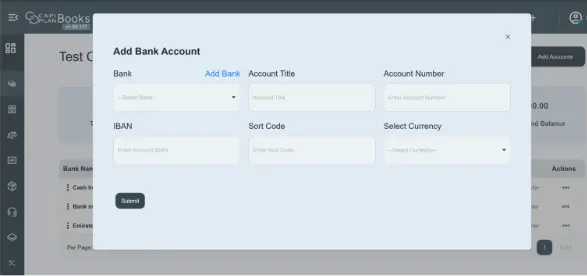
2. Fill in Account Details
- You will typically need to enter all account detail here,
- Scroll down the bank account and select the bank name. e.g. Emirates NBD, Rak Bank
- Enter the client account title name like company’s name e.g. ABCD Trading LLC
- Enter your account number. e.g. 12345600000
- Enter the IBAN number. e.g. AEXXXXXXXXXXXX
- Sort code/ branch code given by the client. e.g. 012345
- Select the currency in which the client has their bank account located. E.g. UAE, USD, etc.
- Then click on the submit button.

- It will bring you back to the front window of the bank account.