
If you don’t find your Bank name
- If you don’t find your bank name in the bank account, then go to the “Add bank” option written on the top right of the bank name option. Shows you in the given picture below.

- Then click on the “Add Bank” option; it will give you more options.
- This window comes on your screen, i.e., given below.
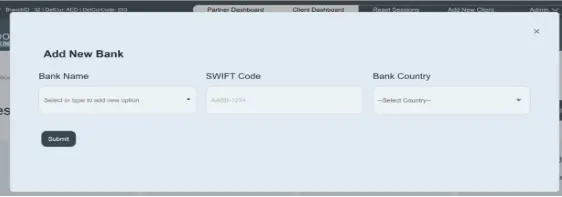
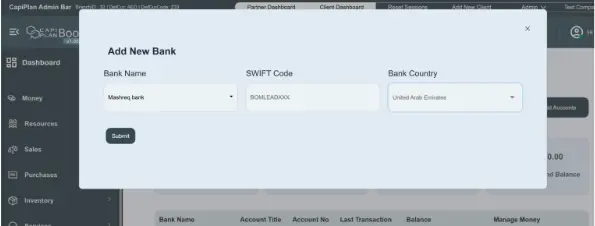
- Click on the bank name and select your bank name. e.g., Mashreq Bank.
- Swift code means international wire transfer code, e.g., BOMLEADXXX.
(If you don’t know your bank’s SWIFT code, then go to Google and search for the “SWIFT code of bank XXX of ABC branch.” You can easily get your bank’s SWIFT code. e.g. “Swift Code of Mashreq Bank of Dubai branch.”
- Select your bank country in which the client bank is located. E.g. UAE, UK, etc.
- Complete the required information and then click on the submit button.
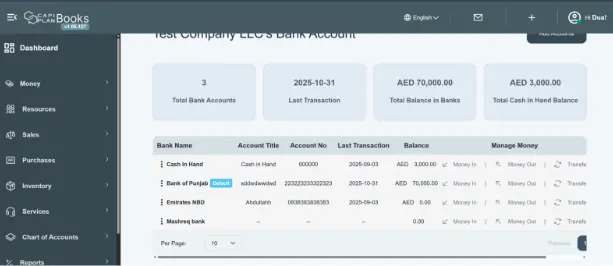
- Once you click the submit button, it will bring you to the main window of the bank accounts. here you will see your banks in the list.
Excellent:
Now you can add the bank accounts
- Go back to the “Add Account” option to fill out your remaining account details.
- Select your bank name (now, this time your bank name will be shown in the given options).
- Select your bank name
- Fill in your account details as per the given example.
- Mention your
- account title
- account number
- IBAN number
- Sort Code and
- Select the currency
- Then click the submit button; automatically, your information will be updated on the front window.
This is a way to create a bank account on the Capi plan books. On the front tabs, you can see all the summarized information you can see related to
- Your total bank accounts
- Your last transaction date
- Total balance in your bank
- Total cash in hand, and then in the section below, you can see your bank name and bank details
