1. Add loan option
Click on add loan option; this option is also used to maintain a loan account. Click on it and a new window will appear on your screen. You must mention all the necessary details to add loan information.

Click on Add loan
- First, you must mention the reference number provided by the bank for the loan (e.g., ABC-456).
- Click on the loan id provided by the bank. E.g. XYZ-452
- Click on loan type and select what type of loan in it e.g. vehicle
- Select the Bank credit Date, which means at what date the loan amount is credited to your bank account. E.g. 10/01/2025
- Then select Loan installment date, date when the first installment is due. e.g. 11/10/2025
- Click on Maturity date, the date when the loan will be fully repaid. E.g. 01/12/2026
- Mention the Loan amount means the total principal amount borrowed. E.g. UAE 100,000 and also select your currency.
- Provide the Interest rate, the interest rate applied on it. e.g. 10.2%
- choose Frequency of payment how often installments are made. E.g. monthly, quarterly, annually. Etc.
- Select or enter the lender name providing the loan. E.g. Mashreq Bank.
- Choose the Receiving Bank account where the loan funds are received. E.g. 013900000000
- Select the payment account from which loan repayments will be made. E.g. Mashreq bank. 0454000000.
- In the Loan sending & installment Account, mention all bank details from which you will pay loan amount or installment amount.
- Account title– the name of account holder from which loan amount will be pay. Mashreq bank
- Account no- the account number of banks. 019290000000
- IBAN- IBAN number of bank accounts. AE9200000000000
- Click on a summary you have to write a brief description related to loan information.
- Click on Drag and drop here and attach any supporting evidence or receipt given by the bank. Please remember this section is mandatory required
- Then Click on the save button.

- Once you save the information, the new loan information will be added in a table form as loan Detail as shown in below picture.
- Now look at loan detail table, there is View Details option is given on the top right side of Loan details row.
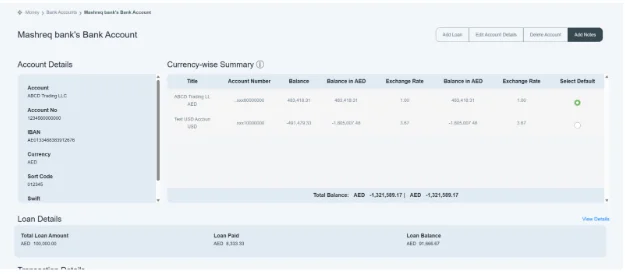
Review details of Loan amount
- Go to view details option mention on the top right corner
- Click on view details

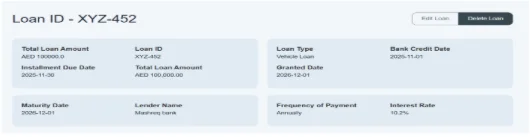
- You can see a new window coming on your screen with your Loan ID mentioned at the top.
- Below is the summary of loan and installment details which user just updated while an add loan section.

Tool Bar
- On the top right corner there is tool bar given having two options, i.e edit and delete loan options are given. This option will only visible when no any installment will pay.
- Once the payment will pay, these option become invisible.

How to Edit loan ID
- By click on option edit loan, you will go back to the same screen where you have mentioned your all details
- Made Changes and save it again
- You can view the updated details on the front screen again

How we Delete the loans ID
- If you want to delete the account, just click the “delete account” button located in loan details, click on it and your account will be deleted.
Basic information of Loan ID
On the top of page, basic information of loan is mentioned. User added these details while creating loan account.
Loan document
- If you want to edit the loan document, go to the button on “view all”. A new option would be opened in front of you.

- By clicking on ‘view all’ option
- You can see all the brief details of loan documents like file name, uploaded by, uploaded date, file size, or type.
- You can delete and choose the file to update the information. trash icon is given in red icon at the right side.
- The “Chose File” option is given at the below of document details. You can choose another file and upload a new loan document here.

- Automatically, your document will be uploaded in your details.
Installment Summery
- At the bottom of the loan window, the installment summary is given. It contains all the required information you enter into an added loan account. Installment summary includes transaction date, installment amount, interest amount, adjustment amount, total amount.
- There is a payment schedule option given at the left side of installment summery.
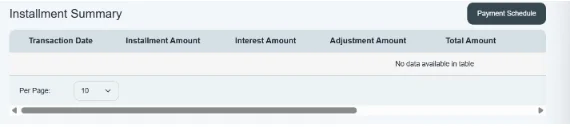
After approving and pay any loan payment it will automatically start recorded here and show you the summarized data.

You can also download the installment summary by clicking on the download statement, located along with the payment schedule.

How to check status of loan payment schedule
- Click on payment schedule
- You can see all the data of your payments, details, and their status.
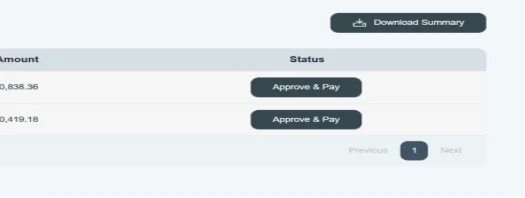
- To check the status of payment, go to the given option, i.e. “Approve & Pay”.
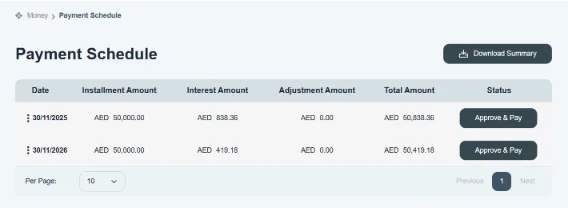
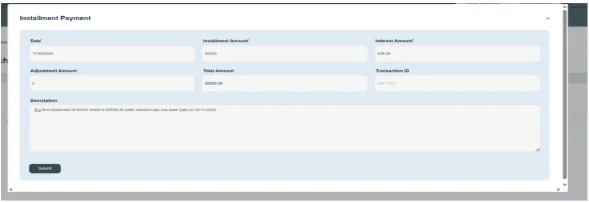
- By clicking on “Approve & Pay” you can see a new option that will appear where you have to mention all your Installment payment details.
- You can add and change your information to it.
- Provide the date on which you paid your loan. E.g. 31/30/2025
- Installment amount is one of the number of payments that you make over a period, e.g. AED 50000.
- Interest amount is the amount calculated against interest rates. e.g 838.36
- The interest rate charged by the bank on loan. E.g. XX%
- Enter the adjustment amount. E.g. 0. (if there is not any adjustable amount).
- Total amount which you had pay e.g. 50838.36
- Transaction id will provide by the bank e.g. ABC-123
- In the description, you can add a summary of installment payments to it. E.g. the first installment of 50000, which is 50838.36 (after interest rate), has been paid on 30/11/2025.
- then click on the submit button.
- All information will be uploaded automatically on the existing payment schedule window.
- On the top right corner download summery option is available, you can download the summery as in PDF form.