
How we add discounts in bills
Discount means reducing the original price of a product/service given by the supplier.
button and go to the “Add payment” button; click on it.

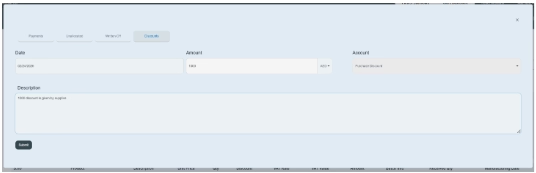
Click on the discount option, located in the add payment section (given in the action button) in the bill section.

- Click on it. A new page opens in front of you.
- First enter the date on which the discount bill occurs in the accounts. 11/15/2025
- Then enter the discount amount (enter the discounted amount you get on the overall payment). Select your currency in which you are paying the payment. E.g., AED.
- The system already shows you the accounting category of the account, such as purchase discount.
- Write a short description in the given space. E.g., a 10% discount is given by the supplier and applied to the overall amount, i.e., 1000 AED.
- Then click on the submit button and save the information.
- Once you submit the information, payment will be displayed in the given payment history.

Delete—You can also delete these payment bills from the payment history section.
- There is a red icon given on the right side of payment bills. You can click on it and delete the information if it is not needed.
