How we convert POs into bills
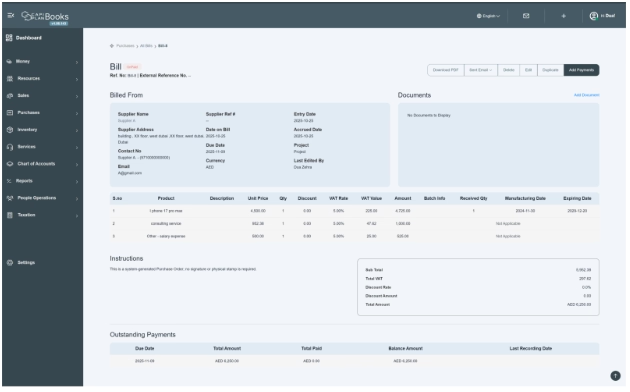
Users can create a bill against a specific PO. Click on the create bill button.
Once you click on button, the system will generate bill against specific Purchase order

After clicking on the “create GRN” button, it will generate a bill and take you to the bill detail window with an unpaid status.
For further treatment of the bill, go to the payment procedure for the bill section and follow the instructions.
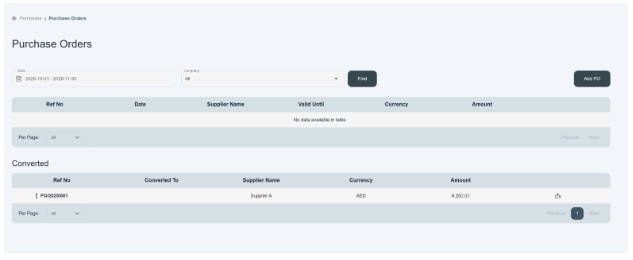
- Once you click on the Create Bill option, that PO will convert into a bill and display you in the converted purchase order section as given below.
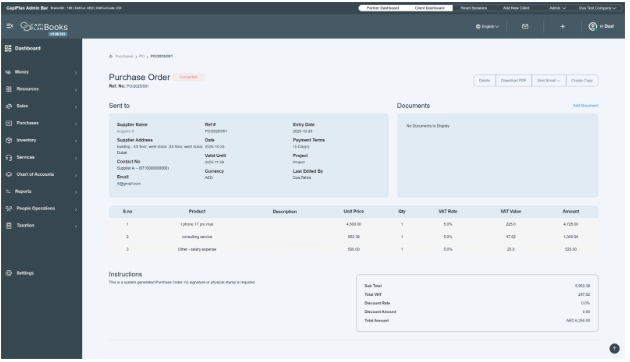
- Click on its reference number; it will show you more details. This page displays the status of the PO, which is successfully converted into a bill.
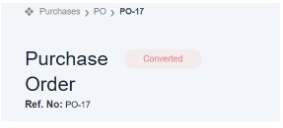
- You can check the status of the PO, whether it’s converted or pending, displayed on the top left side of the page in red font.
- It also shows you action buttons like delete, download PDF, send email, and create copy.
- Delete – Remove the Purchase Order from the system.
- Download PDF – Save the PO as a PDF document.
- Send Email – Email the PO directly to the supplier.
- Create Copy—Duplicate this PO for creating a similar new PO.
- There is a table listing all details related to the purchase order.
- There is an instruction block available as well. Where you can write any instruction related to the product in it.
- Also on the right side, a financial summary box is available that shows you the total final amount of the purchase order.