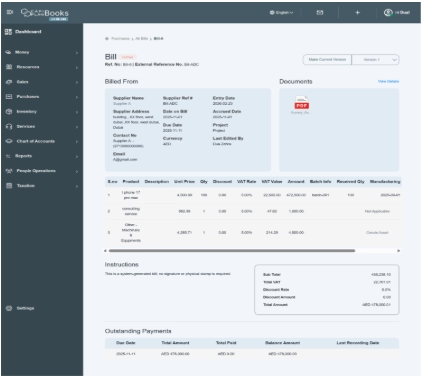
4. How To Edit the Bill Information
Before booking any payment against the bill, if the user wants to make changes or wants to add or remove any information, the user can go to the Edit option given in the action button and click on the Edit option. It will allow you to update the information. Once all the changes are made successfully, then click on the submit button.

Please note that changes can be made before any payment is booked. Once a payment has been recorded, the system will not allow the user to make any changes to the bill. In such a scenario, the user must first delete the payment recorded against the specific bill. After deleting the payment, the user will be able to make changes to the bill document.
Current version/Version 1
Whenever a bill is created or modified, a “Current Version” option becomes available. Upon selecting this option, the system displays both the previous version and the updated version of the bill, allowing users to review the changes.

Current version—shows the latest or active in-use version at the moment.
It shows all the details with the latest updates, corrections, and improvements.
It shows new and enhanced features of the bill, like if you want to edit any information, you can click on “Current version”; it shows you all the new changes made in it. and allows you to make more changes in it as compared to version 1.
Version 1 shows us the previous version, meaning the first edition or original version of the bill. Basically, it is the initial version of the bill.
If any user wants to check about the first edition of the bill, like what details and products were added before, what the overall cost was, what the batch number was, etc., In short, any information he wants to know about the previous bill can be accessed from here.
Like, select the version you want to review. For example, you want to check version 1. Click on version 1.
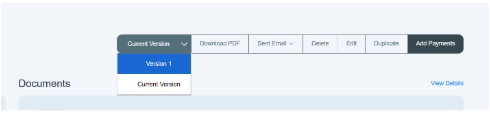
It will show you the previous version of the bill. The previous version also allows you to convert it to the current version by clicking the option available at the top-right side of the page.