1. How to download a PDF of GRN
Users can download purchase orders in PDF form by clicking on the Download button.
Also, the user can download GRN through the main table, where all existing GRNs are listed. There is a download icon given; when you click on it, it will show you the option to export the file in CSV or PDF format.

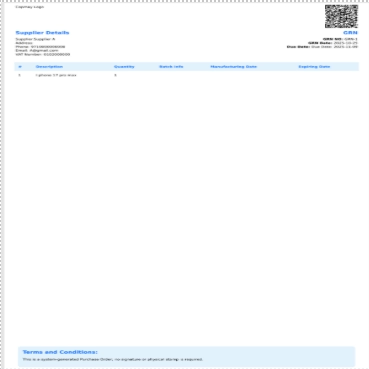
After you download the PDF, it shows the information such as
- Displays the Goods Receiving Note (GRN) with the company logo and document title.
- Shows supplier details including name, contact number, email, and VAT number.
- It contains GRN information such as GRN number, creation date, and due date.
- The table shows you the received product details, including description, quantity, batch information, manufacturing date, and expiry date.
- It includes a QR code for quick verification or reference.
- It provides a Terms and Conditions section stating that the document.