
How to Add Debit Note In Bill
A debit note is a document a buyer sends to a supplier because of the return of purchases due to a mistake or overcharge, and the supplier has to return the payment to the buyer as per the agreement. E.g., goods returned by the supplier, overbilling or incorrect bills, or damaged or defective goods. Also, it reduces purchases and reduces accounts payable.
Click on the “debit note” option.
- Open the specific bill for which you want to add a debit note.
- Go to the action buttons given on the top right side of bill details.
- It will show you more features and more details to add to the bill’s account.
- On the top right side of the page, you can see there is a toolbar given. Go to the add payment option and click on it.

- Click on “add payment option,” and it will open a pop-up window.
- There is a debit note option given.

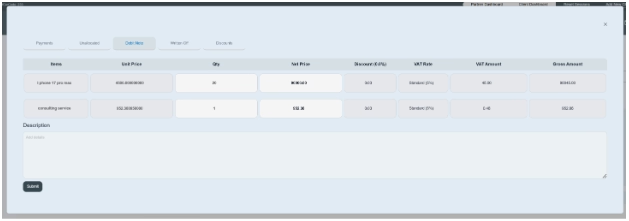
Click on the debit note button; all item details are displayed in a tabular format. It consists of details of products such as items, unit price, quantity, net price, discount, VAT rate, VAT amount, and gross amount.
Enter all the information required in the table.
- Click and select items of specific bills, e.g., iPhone 17 Pro Max and consultancy services. Only product/service-based rows will show in the debit note; it is not applicable for “other.”
- Enter the unit price of the product/service. Click and edit the price (if required).
- Enter the quantity of products. (We only enter quantity of products, not for service, so in service we put 1 in the quantity block).
- Enter net price of product, e.g., AED 4500.
- Enter discount rate, e.g., 10%.
- Enter VAT rate, e.g., 5% (standard).
- The system would automatically deducted VAT amount from given amount, e.g., 2.02.
- The system automatically enters gross amount in it. E.g., AED 4052.03
- Write a brief description, e.g., a debit note has been issued to the supplier.
- Click on the submit button and save the information.
Once you submit the information, it will display on payment history and in the debit note/purchases return subsection as well.

