
Bill Analysis
If you review and analyze the supplier account details, click on the bill reference number, and a new window will come in front of you.
Summary of page
Click on the reference number.
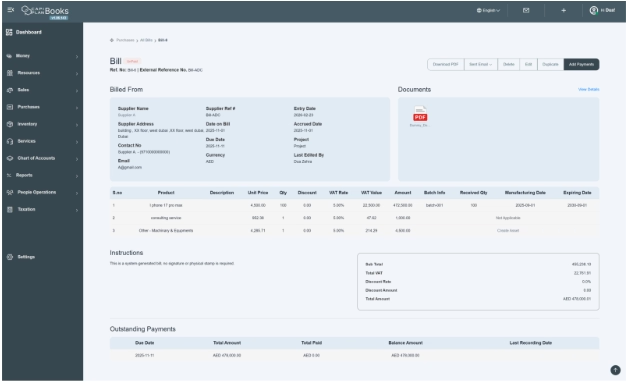
- There are brief details present on this screen. This page consists of basic information of supplier name, supplier address, supplier contact details, bill details, product details, and attachments.
- At the bottom of the given image, there is a table located, which shows us product details added in the supplier bill; it includes name, price, quantity, discount, and VAT.
It calculates the final amount payable for that item.
- The rest of the page includes payment instructions, bank details, outstanding payments, and a signature.
- There are action buttons given for the payment procedure.
Basic information
- It consists of basic information as given below:
- On the top of the page, along with the title, a reference number is given to track the bill. E.g., Ref. No.: Bill-6 | External Reference No.: Bill-ADC
- On the left side, you can see the supplier’s name, supplier address, supplier contact person details, email address, supplier reference number, date on bill, due date, currency, entry date, accrued date, project, and the person who edited the bill.
- All this consolidated information displayed on the front table is mentioned here as well.
Attached Document
- On the right side you can attach a document as supporting evidence.
- If you want to attach a document, click on the button Add Document located on the top right side of the page.
- Click on it, and a new pop-up window will open in front of you. It will allow you to choose a file from the device. Select the file from the system and then upload it.
- Your file will be uploaded successfully.
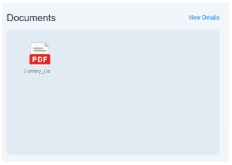
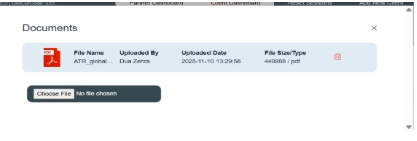
- If you want to review or change it, click on “view details” again.
- Here the user can see file details like file name, uploaded by, uploaded date, file size, and a delete option given in a red icon.
- If you want to change the document, you can click on the “choose file” option and then select another file as per the requirement and then upload it and save it.
- It will display on the front screen of the bill.
Product/service details
- At the bottom of the given image, there is a table located, which shows product details added in the supplier bill; it includes all the fields that we entered while booking the bill. It calculates the final amount payable for that item.
- It will show you the total show summary along with any important instruction, such as any term and condition, that you entered while booking the bill.
- At the end of the page, details of the outstanding balance, payment history, unallocated payments, credit notes, write-offs, and discount information will be displayed once they have been created.
Click open the links to know more about the functionality of action buttons and payment procedures for bills. Click on it and follow the instructions.
