
How to Create Unallocated Payment
“Unallocated payment” means the payment has been paid but not linked to a specific bill or there is a delay that comes from the supplier’s side. Once we find the specific bill, we will link that payment to it, and then the payment becomes allocated.
Click on “Add unallocated payment.”
Go to purchase module. Click on ” “Unallocated payment“; a new page opens in front of your screen. Create an unallocated payment, then go back to bill detail and open the add payment section, and open the unallocated section.
Purchase < Unallocated < Bill < “Add Payment” option.
Below, all the steps are explained in detail.
There is a table given that will provide you summarized information on unallocated payments.

There is a button provided on the top right side of “Add Unallocated Payment”; click on it and a new window will open in front of you.
Fill in the following information.
- A reference number will be generated by the system to allocate the unallocated payment.
- Click and choose the supplier name from the drop-down menu. E.g., supplier A
- Click and choose the supplier bank name from the drop-down.
- Enter the bank date, which is the date you paid the payment through your bank account. e.g., 11/30/2025
- Enter the transaction ID provided by the bank, mentioned on the receipt. ABCD-1234
- Click and choose the sending bank, in which you pay the payment. E.g., ABC Corporate Bank
- “Enter amount” means how much amount you send through the bank. e.g., AED
- Transfer and click and choose the payment method. Which payment method did you use for payment? E.g., check, online payment, bank transfer, etc.
- “Enter description” means write a brief note or instruction related to payment.
- Click on the submit button, and you will see this transaction on the payment history on the front screen.

- A new unallocated payment would be displayed on the front page of unallocated payments.

- You can click on it and track your unallocated payment from the supplier and bill details.
There are three more options available on the left side of the table, i.e., “Allocate | Refund | Split.” To know their functionality, go to the unallocated section and follow the instructions. (4)
Once you submit the information of an unallocated payment, the system automatically adds that information into the bills section too.
Go back to Add payment section.
Come back to specific bill detail information. Open the Add the “payment” section given on the top right side of the bill. Click on it.
Click on the unallocated option; you can see that the same unallocated payment will also be displayed here as well.
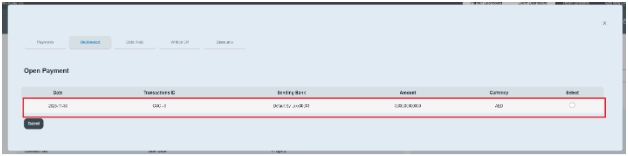
Select the unallocated payment that you want to link to this bill.

Then click on the Submit button.
After submitting an unallocated payment, the system will automatically allocate the payment to the corresponding bill.
Alternatively, you can directly allocate the unallocated payment through the Unallocated section.
