
1. How To Download PDF Of Bill
Users can download the bill in a PDF file by clicking on the Download button. They get the same information into PDF form.

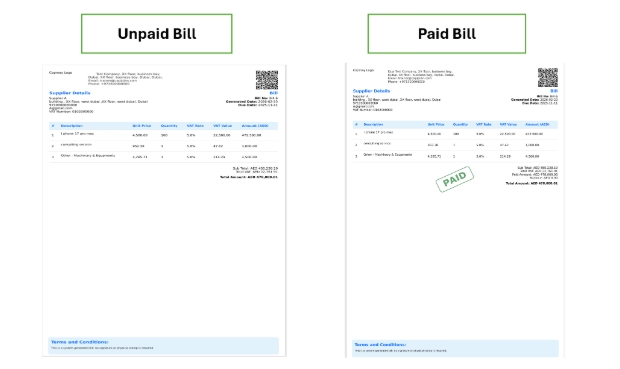
Users can download the bill in PDF format. Below following information are given there.
- All basic information and contact information for the company and supplier are mentioned on the top of the PDF.
- A QR code is given to scan the bills for easy, fast, and secure digital payments.
- Reference number, generated date, and due date are also mentioned for tracking and verification.
- The bill screen displays all financial details related to the transaction, including item-wise breakdown like unit prices, quantities, VAT rate, VAT value, and amount.
- At the bottom of the page, a complete total summary is provided. This summary includes the subtotal, total VAT, and the final total amount.
- The final total represents the amount payable to the supplier.
- The system allows you to download the bill whether it is unpaid or paid. For an unpaid bill, a standard bill document is generated. Once the bill is marked as paid, a “Paid” stamp will be displayed on the document.
- Terms and conditions are mentioned at the bottom of the page.
Document Settings: Users can change the PDF layout or design through default settings as per their preferences.
Setting < Document < Bill section
