
How to Refund a Payment
A refund means returning money to a supplier for any purpose. For example, if you want to return a product, cancel a service, were overcharged, or for any purpose, you can use this option for refund payment.
There are three options available on the left side of the unallocated payment table: Allocate | Refund | Split. If you want to add supplier refund information.
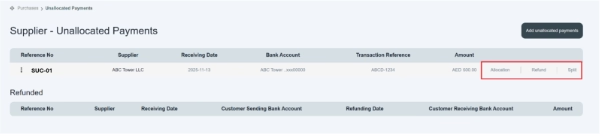
Click on the refund option.
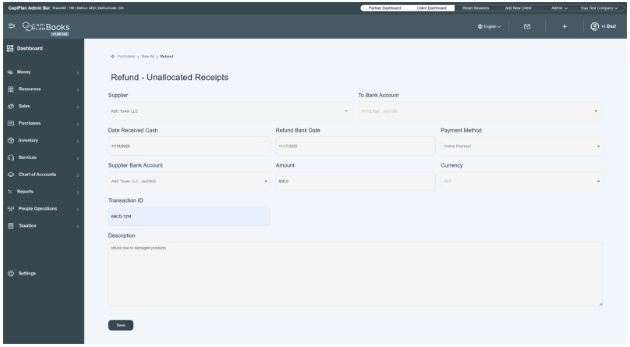
A new page opens on the front of your screen. This page allows you to enter refund payment details.
- First select supplier name, e.g., ABC Tower LLC.
- Click and select a bank account from which money comes out. E.g., ABC Bank
- “Enter date received cash” means on which date you received cash, e.g., 11/13/2025.
- “Enter refund bank date” means on which date the payment has been refunded to the buyer. e.g., 11/17/2025
- Click and choose the payment method from which method you are using to refund the amount. e.g., bank transfer, online payment, check, etc.
- Click and enter the supplier bank account where you send the refund money. E.g., ABC Tower LLC 01000000.
- Enter the refund amount, which means the amount that is going to be refunded to the buyer. e.g., AED 500
- Enter the currency in which you made payment. E.g., AED
- Enter the transaction ID provided by the bank mentioned on the purchase. E.g., ABCD-1234.
- Enter a short description in it. E.g., the AED 500 amount has been refunded to the supplier on 11/17/2025.
- Click on the save button.
- After successfully entering refund information, a new refund payment will be displayed on the refunded table of the supplier unallocated payments section.

- In this way, you can create unallocated payments through the purchase section.
