
Action Buttons of Debit Note
There are two options available on the action button.
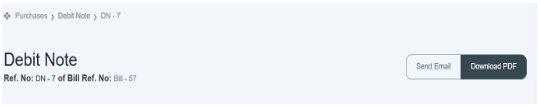
- How to Send Debit Note through Email
The Send Email button allows you to automatically send emails to inform suppliers about debit note updates.
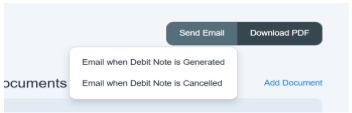
When you click Send Email, a dropdown list opens with different options.
- Email when debit note is generated.
This email generates information to inform the Supplier about a debit note against specific purchases or to inform that a debit note has been issued for a specific purchase.
- Email when debit note is canceled.
This email is generated when a debit note is canceled.
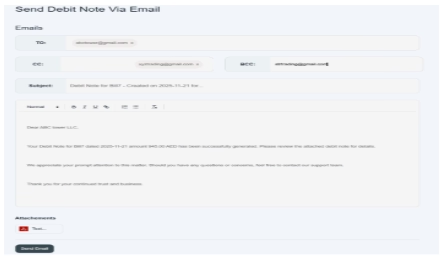
Structure of Email
In the given image below, the user can see how the system sends email to suppliers.
- In To, you just have to enter the email address of the main recipient’s email (supplier’s email). E.g., abctower@gmail.com.
- In CC, add emails of people who should receive a copy of the email. e.g., your internal team: xyztrading@gmail.com.
- In BCC, add emails that should receive a copy secretly (recipients don’t see BCC addresses). E.g., internal audit team strtrading@gmail.com.
- The rest of the part would be generated automatically by the system.
- You can also attach a document as supporting evidence.
- Then click on the send button. Your email will be sent to the supplier.
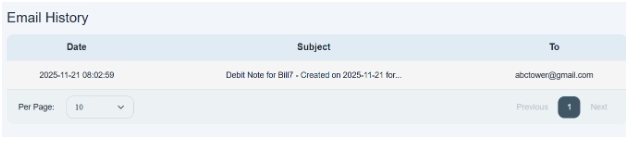
- Once you click on “send email,” it will show you in email history, located on the debit note details page.
- How to Download PDF of Debit Note
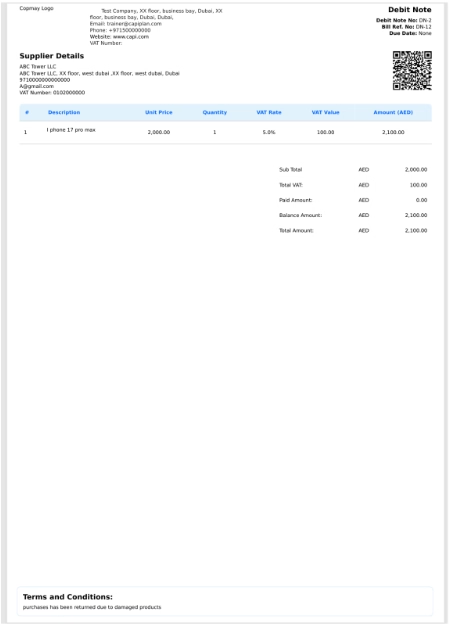
- Users can download the debit note in PDF form by clicking on the Download button.
- The PDF will show you all the details of the product/service: their unit, quantity, VAT rate, VAT value, and total amount.
- At the top all basic details and contact details of the supplier and your company are mentioned.
- The debit note, bill reference no., and due date are all mentioned on the top right side of the PDF.
- A QR code is given for scanning product details.
- Below is a table financial summary. Subtotal, total VAT, paid amount, and balance amount are given here.
- At the bottom of the page, if you add any description, any important details, or any term and condition, it will also be displayed here.
Hence, in this way, the user can maintain a debit note/purchase return account.
