
If you know supplier is a walk-in supplier in the purchase order (PO) section
Add Walk-In Contact
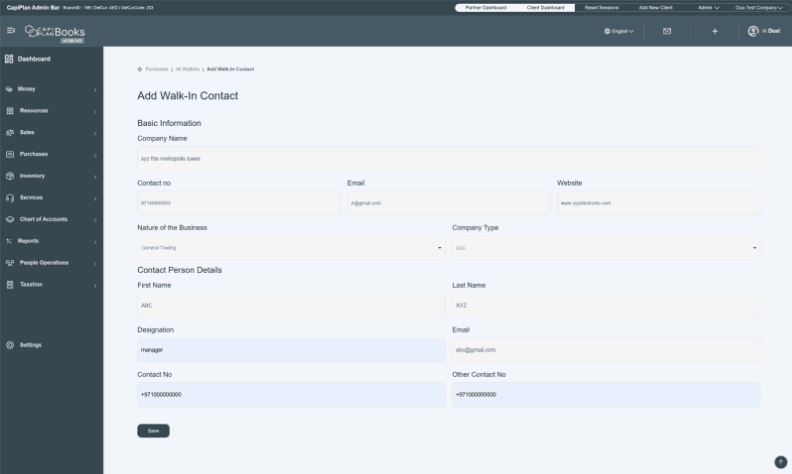
When you click on the Add Contact option, you will go to a new window that is about to add walk-in information. It means you have to add walk-in customer information first here.
Click on the “add new/contact” option.
Basic information
- First you see the basic information block.
- Enter your company name in the given tab, e.g., XYZ Electronics.
- Enter contact of supplier’s company. E.g., +971 4 000 0003
- Enter the email address of the company. E.g., A@gmail.com
- Enter website of company. E.g., www.xyzelectronic.com
- Click and select nature of business. E.g., general trading
- Enter company type like LLC, Pvt., etc.
Contact person details
Contact person details” refers to that individual in the company who has responsibility for coordination and communications to provide you the required information.
- Enter the first name of that person, e.g., ABC.
- Enter Last Name, e.g., XZY
- Enter the designation of that person. E.g., manager
- Enter the email address of that individual. E.g., abc@gmail.com
- Enter the contact number of that person: +97100000000
- “Enter Other Contact Number” means that in any case if the required person is not reachable, then you can contact the other person for the required information.
- After entering all information, click on the Save button to save the information.
Once you save the information, go back to the purchase order and bill page. Refresh the page and then enter again your company information in the required tabs. Now you can see your company name is available in all dropdown sections.
