How to create Add unallocated payments
Click on “unallocated Payments” subhead.
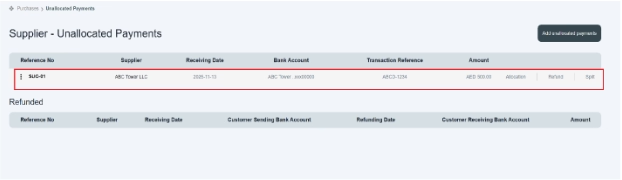
To add unallocated payments, go to the unallocated subsection given in the purchases module. Click on “Unallocated payments”; a new page opens in front of your screen.
Navigation path: Purchase < unallocated payments < “add unallocated payment” button
There is summarized information available in table form. There are three more options available on the left side of the table, i.e., Allocate | Refund | Split. There is a button provided on the top right side of Add Unallocated Payments; click on it, and a new page opens in front of you.
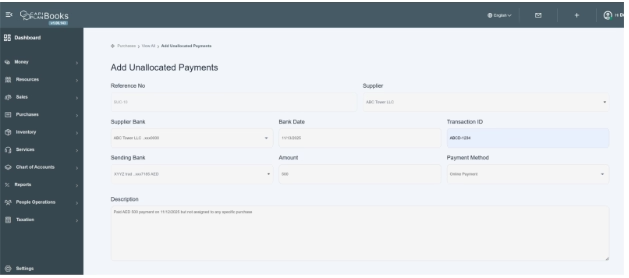
- The enter reference number system generates a reference number to allocate the purchase.
- Click and choose supplier name from the drop-down menu. E.g., ABC tower LLC
- Click and choose the supplier bank name from the drop-down menu. E.g., ABC Tower LLC bank XXXXXX0000, etc.
- Enter the bank date, which is the date you received payment in your bank account. e.g., 11/13/2025
- Enter the transaction ID provided by the bank, mentioned on the payment. ABCD-12345
- Click and choose the company’s sending bank name, from which you send the payment to the supplier. E.g., ABC bank XXXXXX
- “Enter amount” means how much you have paid to the supplier. e.g., AED 500
- Click and choose the payment method that you used for payment. E.g., check, online payment, bank transfer, etc.
- “Enter description” means writing a brief note or instruction related to payments.
- Click on the submit button, and you will see this transaction on the payment history on the front screen.
- Users can also track unallocated payments from supplier accounts as well.
- A new payment would be displayed on the main table of unallocated payments. Users can track the unallocated payment from its reference number.
Unallocated Payment Overview
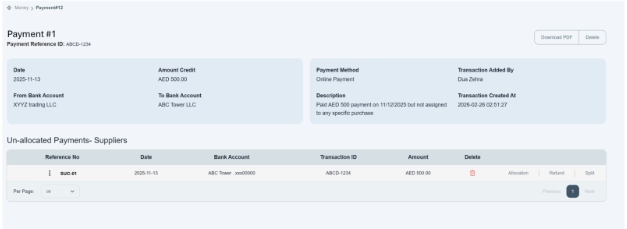
Users can review the details of unallocated payments by clicking on their reference number.
- On the top of the page, the payment number and reference ID are given to track the payment.
- The Payment Information Section at the top displays key details such as the date, credited amount, bank accounts involved, payment method, transaction added by, transaction created at, and a description. This section helps users review all essential payment information in one place.
- The unallocated payments – suppliers section shows payments that have not yet been assigned to any supplier bill. It includes details such as the supplier reference number, payment date, bank account, transaction ID, and total amount.
- Within this section, users can perform actions such as allocating the payment to an unpaid bill, processing a refund, splitting the payment across multiple bills, or deleting the entry if required. To know detailed functionality about how to allocate payment is explained in the section “How to assign unallocated payment to their related purchase.”
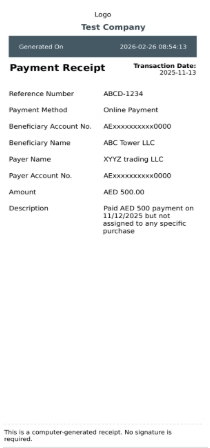
The action buttons located on the top right allow users to download a PDF copy of the payment receipt for documentation purposes or delete the payment record if necessary. payment receipt will look like