
How to add credit note
A credit note is a document a buyer sends to a customer due to any reason, like return of sale, due to a supplier’s mistake, or due to overcharge or defective goods, etc.
A credit note is created from the invoice details page. To add a credit note, go to the ‘Action’ button and select the ‘Add Payment’ option.
Click on Add payment button.
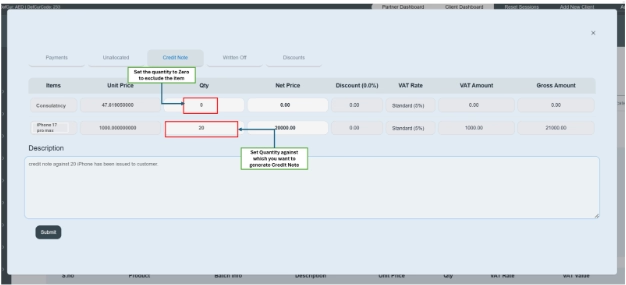
When you open the add payment option. Go and click on the Credit Note option; there is a table given that consists of details of products such as items, unit price, quantity, net price, discount, VAT rate, VAT amount, and gross amount.
Navigation path: Invoice < “Add Payment” button < credit note
- Remember: a user can generate only one time credit note against any invoice; no multiple credit notes could be generated against one invoice.
Fill the following information like this:
- Click on Credit Note.
- Enter all the information required in the table.
- Items—it will show you all product rows included in the invoice. Only product/service-based rows will show in the credit note; it is not applicable for “other.”
- Enter the unit price of the product/service.
- products.Enter quantity of products against you want to create credit note. For example here we issued credit note against 20 products due to damaged products.
- the product.Enter the net price of product.
- Enter discount rate, e.g., 10%.
- Enter VAT rate, e.g. 5% (standard).
- The system will automatically calculate the VAT amount.
- The system will automatically show the gross amount.
- Write a brief description. e.g., a credit note has been issued against the product which was delivered to customer on 11/13/2025.
- Click on the submit button and save the information.
Once you submit the information, it will show you the detailed information of the credit note.

User can even Send email and download pdf of credit note through its details.
User can also access and review the information of credit note through invoice payment history section.

Status- Once the credit note is created, the invoice status will automatically change. If the credit note is generated against a specific quantity, the invoice status will change from ‘Unpaid’ to ‘Partially Paid.’ If the credited quantity fully matches the invoice amount, the status will be updated to ‘Fully Paid.
