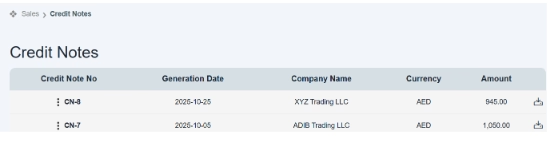
How To Add Credit Note
To add a credit note, we have to go to the invoice section located in the sales module.
First, we have to add the invoice (go to the How to Create an Invoice section and follow the instructions).
Once you’ve created the invoice, open the invoice.
Click on “new invoice”; you can see the invoice details. There are action buttons available on the right side of the invoice page.
There is a button given on the right side of the page, i.e., “Add payment.”

When you click on “add payment option,” it shows you a new page.
This page allows you to add information or add any additional payment on it. There is also an action bar on it. Payment, unallocated, Credit Note, written off, Discount

Here you can see there is an option given that is “Credit Note.”
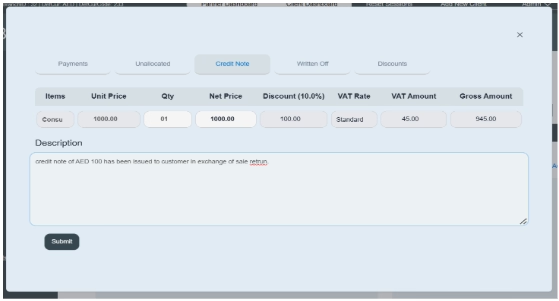
Click on the Credit Note button; there is a table that consists of details of products such as items, unit price, quantity, net price, discount, VAT rate, VAT amount, and gross amount.
- Click on Credit Note.
- Enter all the information required in the table.
- Click and select the item of a specific invoice, e.g., consultancy.
- Enter the unit price of the product/service. E.g., AED1000.
- Enter the quantity of products. (We only enter the quantity of products, not for service).
- Enter the net price of the product.
- Enter discount rate, e.g., 10%.
- Enter VAT rate, e.g. 5% (standard).
- The system would automatically deduct the VAT amount from the given amount.
- The system automatically enters gross amount in it.
- Write a brief description, e.g., “A credit note has been issued to the customer.”
- Click on the submit button and save the information.
Once you submit the information, it will display on payment history and as a credit note/sale return transaction.
After submitting the credit note, the invoice status will change to partially paid and update the balancing amount.
You can also download the statement of credit note by clicking on the download icon given on the right side of the row.