Actions Button
Click on action buttons.
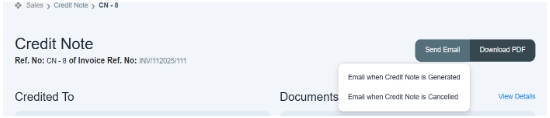
There is an action button located at the top right side of the page. i.e., send an email and download a PDF.
i. Send email
The Send Email button allows you to automatically or manually send emails to inform customers or internal management about the credit note status.
When you click Send Email, a dropdown list opens with different options.
- Email when a credit note is generated.
This mail is generated to inform the customer about their credit note details and payment instruction after the credit note is created.
- Email when the invoice is canceled.
This email is generated when a credit note is canceled.
How we send email through system
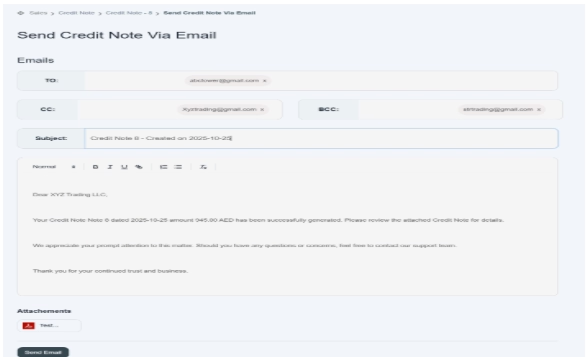
In the given image below, the user can see how the system sends email to customers.
- In To, you just have to enter the email address of the main recipient (the customer’s email). E.g., abctower@gmail.com.
- In CC, add emails of people who should receive a copy of the email. e.g., your internal team: xyztrading@gmail.com.
- In BCC, add emails that should receive a copy secretly (recipients don’t see BCC addresses). E.g., internal audit team strtrading@gmail.com.
- The rest of the part would be generated automatically in the system.
- You can also attach a document as supporting evidence.
- Then click on the save button. Your email would be sent to the customer.
ii. Download PDF
You can also download the credit note document in PDF form by clicking on the button “download the statement.”

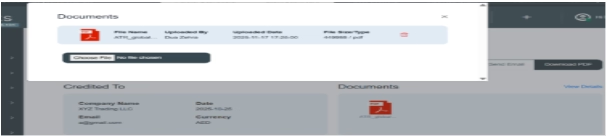
How to attach document
- You can also attach the document of the invoice as supporting evidence.
- If you want to attach a document, click on the button, choose a file, and click on it. A new page opens in front of you; select the file from the system and then upload it.
- The system will upload the document into it.
- You can see file details like file name, uploader, upload date, and file size, and a delete option is also given in a red icon.
- If you want to recheck the document, you can click on the “view details” option located on the right side of the document block.
- If you want to change the document, you can click on the “choose file” option and then select another file as per the requirement and then upload it and save it.
- It will display on the front screen of the invoice.