
vi. How We Add Payment in Invoice
To book receipts against the invoice that you received from the customer against selling goods or services, the “Add Payment” button is used to record these receipts.
If the invoice is fully paid, enter the full payment amount to update the invoice status to Paid. If the invoice is partially paid, enter that received amount, and the system will automatically update the remaining balance.
Any advance, unallocated, credit note written off, and discounted payment received from the customer can also be recorded through this feature. This ensures all customer payments are properly tracked and reflected in their account balance.
Click on “Add payment” button.
When you click on “add payment option,” it shows you a new pop-up window.
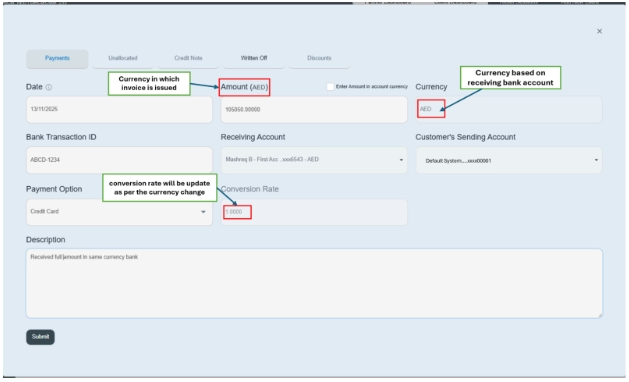
This window allows you to record any payment against the specific invoice or record any additional payment linked to any specific invoice. Payment, unallocated, Credit Note, written off, Discount
Click on “Payment” button.

Fill the information.
- First enter the date on which you received payment. E.g., 11/13/2025
- Amount—Input the received amount. For full payment, enter the total invoice amount (auto-filled by system). For partial payment, enter the received amount; the system will automatically update the remaining balance.
- The currency system will show you by default the currency in which the invoice is received.
- Checkbox – If payment is received in a different currency, select the checkbox “Enter Amount in account currency.” This option should be used when receiving foreign currency.
- Once selected, the system allows you to enter the payment amount in the foreign currency.
- “Enter bank transaction ID” means a unique reference number provided by the bank and mentioned on the invoice, e.g., ABCD-12345.
- “Enter receiving account” means the bank account where the money will be received. E.g., ABC Bank of Corporation.
- Customer sending account: select the customer account. If you are not dealing with customer bank accounts, then just use system-generated default data for the provisional basis.
- “Add payment option” means which method you are using to make payment. E.g., cash, online transfer, check, etc.
- Conversion rate—shows used to convert foreign currency amounts into the company’s base currency.
- Enter a brief description or any important instruction related to payment. E.g., payment has been received on 11/13/2025.
- Then click on the Submit button, and you will see this transaction on the payment history on the front screen.
- If you want to delete this payment history, go to the front page of the specific invoice where details are provided. Go on “payment history”; there is a red icon given at the left side of the payment table. Click on it, and it will ask you permission to delete the payment invoice.
- In this way, you can delete specific payments from history.
