
How we Add New Walk-in Customers
When you click on the Walk-in customer subsection, a new page opens in front of you. This page consists of summarized information provided in a table. The table includes walk-in customers, number of quotations, total quotation amount, number of proforma invoices, and total proforma invoice amount.
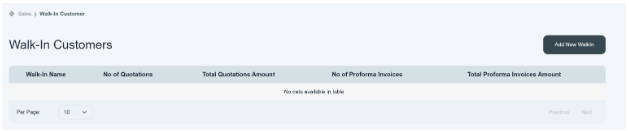
Walk-in customer. Click on Walk-in customer.
Click on the button located on the top right side of the page. Click on it and a new page opens in front of you. You can add new walk-in customer information in it as given below.
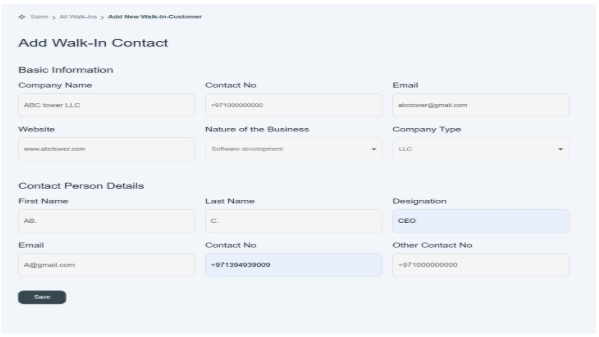
Basic information
- First you see the basic information block.
- Enter your company name in the given tab, e.g., ABC Tower LLC.
- Enter contact information of the company. E.g., +971000000000
- Enter the email address of the company. E.g., abctower@gmail.com
- Enter website of company. E.g., www.abctower.com.
- Click and select nature of business, e.g., software development.
- Enter company type, like LLC, etc.
Contact person details
“Contact person details” refers to that individual in the company who has responsibility for coordination and communications to provide you the required information.
- Enter the first name of that person, e.g., AB>
- Enter Last Name E.g. C.
- Enter the designation of that person. E.g., CEO
- Enter the email address of that individual. E.g., A@gmail.com
- Enter the contact number of that person: +97100000000
- “Enter Other Contact Number” means that in any case if the required person is not reachable, then you can contact the other person for the required information. E.g., +971000000
- After entering all information, click on the Save button to save the information.
- A new walk-in customer account would be displayed on the front screen of the customer.

