
How we assigned unallocated receipts to their related invoice.
There are three more options available on the left side of the table, i.e., Allocate | Refund | Split.
- How we Allocated the receipts
Allocation basically means assigning or matching a customer’s payment to a specific invoice or outstanding bills.
In simple words, when we receive any amount against any existing invoice or related to one or more invoices, then we allocate the payment, like we decide which invoice is related to this unallocated receipt.
We only do allocation of any unallocated payment that has an unpaid bill found against the supplier sending it. If there is a paid bill found against the specific payment, then it will not allow us to allocate any cash against any payment.
For this, first we create unallocated receipts; after that, the user can see there are options located on the right side of the table given on the front page of unallocated receipts. Options are
Allocate | Refund | Split.
the click on allocated payment
Click on “Allocate payment,” and you can see a new page opens on it.
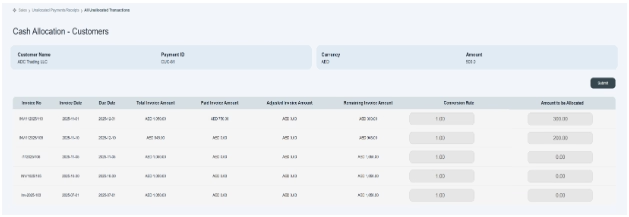
You can see there is summarized information given on top of the page. There are such things as customer name, which is ADC Trading LLC; payment ID, which is CUC-76; currency, which is AED; and amount, which is 250. mentioned at the top of the cash-allocated invoice.
- At the bottom you can see there is a table given, consisting of details of cash allocated invoices.
- There is information given about an outstanding balance or adjustable balance related to a specific invoice.
- Once we assign cash or get to know what amount is to be allocated to a specific invoice, we click on the Submit button, and automatically the system would be assigned that specific invoice.
- How we Add Split Payment
“Split payments” mean dividing one payment into two separate payments. If a customer divides one invoice into two separate payments. Like, the customer paid the payment by using different modes of payment methods such as cash, bank transfer, etc.
- There are three more options available on the left side of the unallocated payment table, i.e., Allocate | Refund | Split, if you know the unallocated payment is made in split form. Then we record split unallocated receipts.
Click on Split option.
- Click on the split option; a new page opens in front of you.
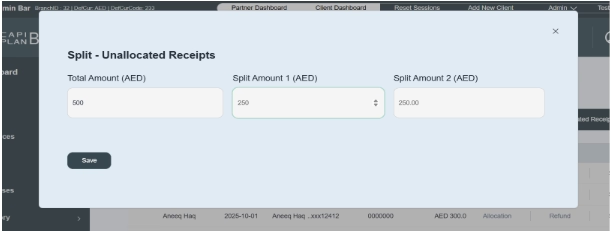
- Click and enter the full unallocated amount. e.g. AED500
- Enter split amount one and then enter second amount, e.g., AED300, and in second section, system would automatically deduct next remaining amount, i.e., AED200.
- Then click the save button in it.
- Once you save the information, it will display on existing customers’ unallocated receipts.

- How we add refund payments
“Refund” means returning money to a customer because they returned a product, canceled a service, or were overcharged.
There are three more options available on the left side of the unallocated payment table, i.e., Allocate | Refund | Split. If you want to add customer refund information,
Click on refund option.
- You have to click on the Refund option; a new page opens on the front of your screen.
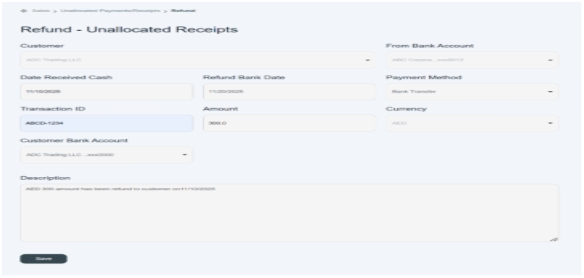
- This page allows you to enter refund payment details.
- First select the customer name. e.g. ADC trading LLC
- “Click and select from bank account” means from which bank money comes out. E.g., ABC Bank
- “Enter date received cash” means on which date you received cash. E.g., 11/10/2025
- “Enter refund bank date” means on which date payment has been refunded to the customer. e.g., 11/20/2025
- Click and choose a payment method, which means which method you are using to refund the amount. e.g., bank transfer, online payment, check, etc.
- Click and enter the customer’s bank account where you will send the refund money. ADC trading LLC 0100000000200020
- Enter Refund amount, means amount that is going to be refund to the buyer, e.g., AED300.
- Click and choose the currency in which payment has been paid. E.g., AED
- Enter the transaction ID provided by the bank mentioned on invoice. E.g., AECD-11234.
- Enter a short description in it. E.g., the AED 300 amount has been refunded to the customer on 11/10/2025.
- Click on the save button.
- After successfully entering refund information, a new refund payment would be displayed on the bottom of the customer unallocated receipts table.
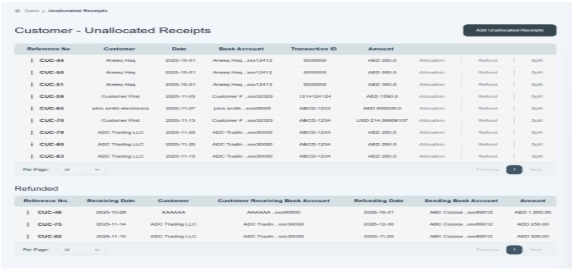
In this way you can create unallocated receipts in the invoice section.
