
1. How To Create Quotation
Click on the Quotes option; it opens a new page that consists of a table that shows summarized information of the quotation once you enter it.
Filters
There is a date and company filter given at the top left side of the table. You can click and select the date and company name of the customer in order to get the specific data of a specific period.
There is a button located at the top right side of the table, Add Quotations/PI.
Click on it, and a new window opens in front of you. .

Click on the “Add Quotations/PI” button.

Condition
Please remember the following information, given below.
- The system will not allow selection of product in the “add product” section of a quotation, proforma invoice, or sales invoice unless the purchase bill for that product has been booked against inventory.
- Inventory items must first be added in the Inventory module.
- A purchase bill must be recorded against the company’s inventory account for the added product. Batch information is mandatory when booking the purchase bill.
- Products become available for sales documents only after the purchase bill is successfully posted.
- This requirement applies only to inventory (product) items and does not apply to service items.
Select the quotation.
Go to the right top corner of the quotation, and click on it. There are two options mentioned in the drop-down menu that are “Quotation” and “Proforma.”

- Now first select the quotations.
- Enter the reference No. to identify the invoice, or the system will automatically generate a quotation reference number until the input is provided.
- Enter the company name of the client, e.g., XYYZ Trading LLC.
If the customer’s name is not available, please go to the section. How to add a customer’s company name while creating an invoice or quotation/proforma. For detailed instructions.
- Click on project, and select an existing project to link the quotation.
If you don’t find the project name, then go to section How To Add A Project Details. But this option is not mandatory.
- Use Project Details—Check this box to auto-fill details from the selected project.
- Enter the quotation date, the date on which the quotation is created. 10/1/2025 (the default is today).
- Enter the valid until date, which means the expiry date for the quotation’s validity, e.g., 11/15/2025.
- Enter the discount rate mentioned in the given quotations and apply a percentage discount to the entire quotation, e.g., the discount rate is 10% or 0 (if no discount was given).
- Enter the days’ validity, which means the number of days the quotation remains valid, e.g., 45 days.
- Click and select the currency for the quotation (e.g., AED).
- Enter the bank name and account name. Choose the companies’ bank and account details for receivables, e.g., Mashreq Bank.

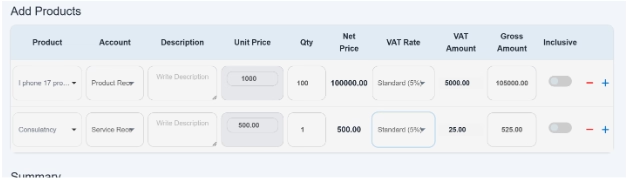
Click on Add Products.
- Click and select the item name as product or service from the dropdown list, e.g., item, service, or others.
If you don’t find your product and service in the product/item field, then go to the section – how to add a product and service in the item field.
- Enter the account name. Choose the related accounting category.
The accounts field depends upon the item if you are going to add a specific item/service name in the item field. It will automatically show you two options in the account head, i.e., product revenue or service revenue. Just select it, and it will automatically add the item to their respective account.
OR
Second, if you select “others” in the item section and you don’t find your account head in the account field, to select the account code, go to charts of accounts and click on profit and loss; that page will allow the user to create a new account head or add a new account head under the required category.
- Enter a description, like a brief detail of the product.
e.g., the quotation for the product or service will be valid in a given time period. After the time, the price would fluctuate as per the exchange rate.
- Enter unit price, the price per unit of the product/service, e.g., AED1000 for iPhone 17 Pro Max and 500 for service.
- Enter the quantity, the quantity of items being quoted. (We enter quantity only for products, not for service). For service, we add 1 in quantity.
- The net price would be automatically calculated once the quantity is updated, e.g. If the unit price is AED 1,000, then the cost for 100 pieces would be AED 100,000.
- Click and select the applicable VAT rate, e.g., 5% standard.
- Automatically system would calculate Vat amount. e.g. would be AED5000.
- “Enter Gross amount” means the total amount including VAT. e.g., the gross amount would be AED105000.
- Use + to add a new product row and - to remove one.
- inclusive checkbox; here it works like this: in the unit price, the VAT amount is already added.
Here the system only deducts and calculates the original price of the product and calculated VAT amount from the unit price. When you click on the inclusive button, it means the VAT amount is deducted from the total amount. And when you click Off, it means the VAT amount is included.
- Summary: You can also add comments or special terms for the invoice in the text area provided.
- Right-hand side: On the right-hand side, a financial summary is given. It automatically calculated your grand total, like net amount, discount applied on overall amount, before or after VAT amount, and total payable amount.

- Select the authorized persons or department responsible for approving or signing the quotation. There are three options given for the signature for responsible persons.
- After entering all information successfully, click on “saves” the quotation and adds it to your records.

Once you save the button, a new quotation will be added into the quotes page as well as given in the sales module.
As you continue creating quotations, the system will automatically generate and assign quotation numbers in sequence. Each new quotation will be indicated with the next quotation number, allowing you to track and manage them easily in numerical order.

