3. How We Send Email Through CapiBooks
The Send Email button allows you to automatically or manually send emails to inform customers or internal management about quotation status updates.
When you click Send Email, a dropdown list opens with different options.
- Email when quotation is created.
This mail is generated to inform the customer about their payment details and payment instruction after the quotation invoice is created.
- Email when quotation is canceled.
This email is generated when a quotation is canceled or voided.
- Email when quotation is modified.
This email is generated when any information is added or removed from a quotation invoice.
- Email when quotation is expired.
This email is generated when the quotation has passed its valid date and the prices or terms may change. In simple words, the time limit for accepting the offer is over.

Generate an email.
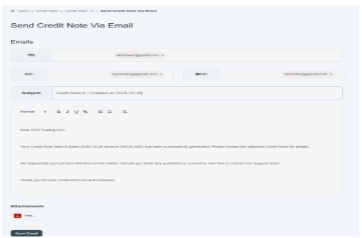
In the given image below, the user can see how the system sends email to customers.
- In To, you just have to enter the email address of the main recipient’s email (customer’s email). E.g., abctower@gmail.com.
- In CC, add emails of people who should receive a copy of the email. e.g., your internal team: xyztrading@gmail.com.
- In BCC, add emails that should receive a copy secretly (recipients don’t see BCC addresses). E.g., internal audit team strtrading@gmail.com.
- The rest of the part would be generated automatically in the system.
- You can also attach a document as supporting evidence.
- Then click on the save button. Your email would be sent to the customer.